 TritonPanels
What panel by panel reading is
Instead of showing the whole page, the reader zooms to the first panel, and each tap moves to the next one in reading order. When the page is finished it moves on to the first panel of the next page. You read at a comfortable size without touching the zoom once.
Digital comic stores have offered this for years, but only for comics they sold and prepared by hand. Your own CBZ, CBR and PDF files come with no panel information at all, so a reader has to work the panels out itself.
How TritonPanels finds the panels
TritonPanels uses a panel detector trained on comic pages. It finds panels on clean grids, on full-bleed art and on busy digital layouts, and it runs entirely on your device — no page is ever uploaded, and it works offline.
- Reading order. Grids are read row by row, so every step lands on the next panel.
- Wide strips are shown full width and centred rather than cropped.
- Covers and splash pages are shown whole.
- Blank margins are not mistaken for panels.
How to turn it on
- Open any comic in TritonPanels.
- Tap the top of the screen to show the controls and open the reader menu.
- In the reader menu, pick Panel by Panel from the view modes, alongside Single Page, Double Page and Continuous Scroll.
The first time you use it, a one-screen guide shows the controls. You can bring it back at any time with How Controls Work in the reader menu.
The controls
- Tap the right or left side to step forward or back a panel.
- Tap the top of the screen to show the controls.
- Swipe down anywhere to show the controls, and up to hide them.
Manga: right-to-left panel order
Manga is read right to left. Once Panel by Panel is on, set the panel direction beneath it to Right to Left (Manga) and panels in each row are stepped through from the right. Western comics use the default, Left to Right.
Good to know: the detector was trained on Western comic pages, so it is at its best there. On an unusual layout, switch to single-page view for that page — your place in the comic is kept.
Other ways to read
Panel by Panel is one of four view modes. Single page and double-page spreads suit tablets and landscape reading, and continuous scroll suits long vertical comics. See all features.
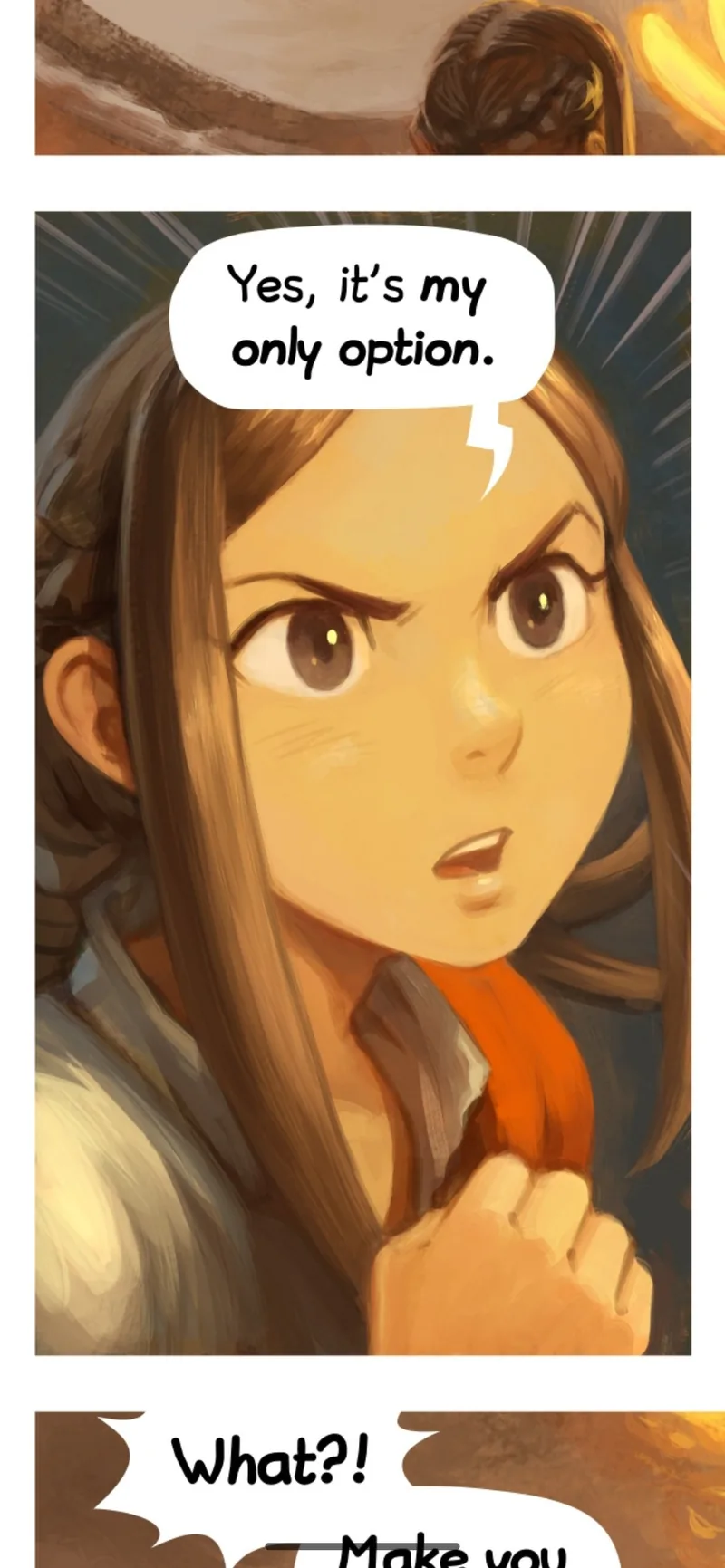
Comic pages shown: “Pepper&Carrot” by David Revoy, licensed CC BY 4.0.
Frequently asked questions
Is panel by panel the same as guided view?
It is the same idea: one panel at a time, full screen, in reading order. Guided view is the name some digital comic stores use for it on comics they sell; TritonPanels does it on your own files.
Does panel detection send my comics anywhere?
No. The detector is built into the app and runs on your device, with no network connection needed.
Which files does Panel by Panel work with?
CBZ, CBR, CBT and PDF comics — every format TritonPanels reads.
Can I read manga panel by panel?
Yes. Set the panel direction to Right to Left (Manga) so panels are stepped through from the right. The detector was trained on Western pages, so some manga layouts are handled better than others.
More on this from the TritonApps blog: TritonPanels 1.3: a panel detector that reads real comics and reading comics one panel at a time.
Read your comics with TritonPanels
A comic and manga reader for iPhone, iPad and Android. CBZ, CBR, CBT and PDF from your device, Google Drive, Dropbox or OneDrive — single page, spreads, continuous scroll or Panel by Panel. No ads. 7-day free trial, then a monthly or yearly subscription.
Related guides
Open CBZ and CBR files on iPhone, iPad and Android
What CBZ, CBR, CBT and CB7 comic files are, why your phone won’t open them on its own, and how to read them on iPhone, iPad or Android.
Read comics from Google Drive, Dropbox or OneDrive
Keep your comic collection in Google Drive, Dropbox or OneDrive and read it on iPhone, iPad or Android — online or offline, without uploading it anywhere new.